
 TEXSENDER is a Telegram automation software designed for users who want to manage Telegram messages, contacts, groups and username lists directly from their computer in a simple and efficient way.
TexSender works with Telegram Web and does not require you to manually configure Telegram API credentials. It can automate several repetitive operations such as sending messages, importing users, sending messages to groups, extracting public usernames and inviting users to your groups.
If you use Telegram for customer communication, community management or other legitimate messaging activities, TexSender can help save a significant amount of repetitive work.
- Create and send personalized Telegram messages to contacts or username lists.
- Import Telegram usernames or phone numbers from TXT files.
- Send Telegram messages to usernames that are not already in your address book.
- Use different sending modes: username lists, Telegram contacts and Telegram groups/channels.
- Create multiple versions of the same message and select them automatically during a campaign.
- View sending results and operation logs in real time.
- Set a random delay between consecutive operations.
- Send Telegram messages with attachments, including photos, videos, PDF documents, Word files and other documents.
- Use the Telegram Group Scraper to extract public usernames from groups you have joined.
- Invite users to your group from a Telegram username list.
- Use multiple Telegram accounts in rotation for supported message sending and invitation operations.
Choose Your TexSender Version
TexSender is available both as a Windows desktop application and as a Chrome/Edge extension that works directly with Telegram Web.
Windows version: recommended if you want to use TexSender as a standalone desktop application and access the complete Windows workflow.
Chrome Extension: runs directly inside Chrome/Edge together with Telegram Web and can also be used on Windows, macOS and Linux.
NOTE: The FREE version can be used to test the main TexSender features. Some import, batch and advanced features may be limited compared with the Professional version.
TexSender should be used to communicate with Telegram users who know you, expect your communications or have a legitimate relationship with you, such as customers, students, community members or clients. TexSender is not intended as a spam tool. Telegram may restrict accounts according to user reports, privacy settings and anti-spam systems, and we are not responsible for restrictions caused by improper use.
Immediately after installation, you will see the TexSender main screen:

[GUIDE] How Does TexSender Work?
Installation – Windows Version
Download TexSender on your Windows PC and run the installation file.

After installation, launch TexSender and click START SERVICE to open Telegram Web.
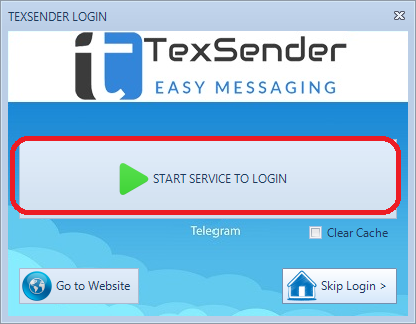
If you are not already logged in, Telegram Web will ask you to authenticate your Telegram account.

Keep the Telegram Web window available while TexSender performs its automatic operations.
Using Multiple Telegram Accounts
TexSender can also manage different Telegram accounts.
From the main screen, open MANAGE ACCOUNT and use ADD ACCOUNT to configure another Telegram profile.

After adding your Telegram accounts, you can select which account should be used for an operation.
For supported functions, you can also select multiple accounts in rotation. For example, TexSender can process a configurable number of recipients with one account and then automatically continue with the next selected account.
Account rotation is intended to simplify the management of multiple Telegram profiles. It does not override Telegram privacy, anti-spam or account restrictions.
Index
-
HOW TO SEND BULK TELEGRAM MESSAGES
-
TELEGRAM GROUP SCRAPER
-
ADD MEMBERS TO YOUR GROUP
-
HOW TO ACTIVATE PRO VERSION
-
ANTI-BAN AND RESPONSIBLE USE TIPS
HOW TO SEND BULK TELEGRAM MESSAGES FROM PC
TexSender allows you to send Telegram messages in different ways:
- Send messages to Telegram username or phone-number lists
- Send messages to your Telegram contacts
- Send messages to Telegram groups
Before sending, create the message you want to use.
TexSender allows you to create multiple versions of a message so that different message variants can be selected during processing.
In the MESSAGE tab you can enter a title, message text, links, emoji and, where supported, attach an image, video or document.

A) SEND MESSAGES TO A TELEGRAM USERNAME LIST
After creating your message, open the SEND TO USERS LIST section.
You only need to:
- Click IMPORT USERNAME LIST to load your Telegram username list.
- Click START to begin processing.

The usernames can be stored in a TXT file, one username per line:
username1
username2
username3
Before starting, you can also configure a random delay between operations.
When you press START, TexSender can ask which Telegram account should be used. If several accounts have been configured, supported operations can also use multiple accounts in rotation.

During the operation, the table is updated with the result for each recipient.

For each username, TexSender shows whether the operation completed successfully. When Telegram or Telegram Web returns an error, the available error information is displayed in the corresponding status or Reason field.
B) SEND MESSAGES TO A PHONE NUMBER LIST
Where this function is supported, open SEND TO USERS LIST and:
- Click IMPORT PHONE LIST.
- Select the TXT file containing the phone numbers.
- Click START.

Phone numbers must include the international prefix, for example:
+394495487332
+919983234566
+549345443090
You can also configure a random delay between operations.
If multiple Telegram accounts are configured, the supported multi-account options are displayed when the operation starts.
The results are displayed in the program:

If you see USER NOT FOUND, TexSender was unable to resolve that phone number to an available Telegram user in the current workflow.
Please note that phone-number based operations may require TexSender to temporarily save or import a contact before Telegram allows the corresponding user to be accessed.
C) SEND MESSAGES TO YOUR TELEGRAM CONTACTS
To send a message to your Telegram contacts, first create one or more messages in the MESSAGE tab.
Then open the contacts section and click LOAD YOUR CONTACTS.
Keep Telegram Web available while TexSender performs the automatic operations required to load the contact list.
After loading, you can select the recipients directly from the TexSender interface.

Select the contacts and click SEND.
The result of each operation is displayed on the right side of the program.

If you have a list of phone numbers that are not already saved in your Telegram contacts, the Windows version may also provide an Import New Contacts by Phone Number function.

D) SEND MESSAGES TO TELEGRAM GROUPS
Open the GROUP SEND section.
TexSender loads the groups available to the Telegram account, allowing you to select the groups where the message should be sent.
Finally click SEND.

TELEGRAM GROUP SCRAPER
The Telegram Group Scraper can extract publicly available usernames from groups you have joined.
After extracting them, the usernames can be saved and reused with compatible TexSender functions such as the Username Sender or Add Members tool.
Telegram Web does not necessarily expose every member of every group to the client at the same time. Therefore, the number of usernames that TexSender can extract depends on the members and information that Telegram currently makes available in the interface.
If you need more advanced Telegram member-management functions, you can also see TEXAPI PLUS.
Click GROUP SCRAPER from the TexSender interface:

TexSender loads the Telegram groups available to your account.
Select a group and click START.
During scraping, TexSender automatically navigates the available member profiles and collects usernames that users have made publicly available.

Once finished, usernames can be exported and reused in the Send to Username or Add Members sections.
ADD MEMBERS TO YOUR TELEGRAM GROUP OR CHANNEL
The ADD MEMBERS GROUP function allows you to load a Telegram username list and attempt to invite those users to a group you manage.
Click IMPORT USERNAME LIST, select the target group and then click START INVITE.
When the invitation operation starts, TexSender can use the currently active account, another configured account or, where supported, multiple accounts in rotation.

During the operation you can view which invitations were processed successfully and which failed.

TexSender can automatically add a random delay between requests.
However, whether an individual user can actually be added is ultimately decided by Telegram.
User privacy settings, group permissions, account restrictions, Telegram anti-spam systems and other platform conditions can prevent an invitation.
For this reason, there is no single fixed “100–200 users per day” limit that should be treated as valid for every Telegram account or every group.
If you need more advanced tools for working with group members, see TEXAPI PLUS.
HOW TO ACTIVATE TEXSENDER PRO
Step 1. Open TexSender.
Step 2. Open the main TexSender window.
Step 3. Go to the About section.
Step 4. Click Activate PRO Version.
Step 5. Enter the requested registration information and click Register.

TELEGRAM ACCOUNT SAFETY AND RESPONSIBLE USE TIPS
1. If you are using a new Telegram account, use it normally before performing larger automated operations.
2. Start with smaller recipient lists rather than immediately processing a very large number of users.
3. Send relevant and appropriate messages instead of repeatedly sending identical unsolicited content.
4. Use TexSender’s Delay settings to maintain reasonable intervals between consecutive operations.
5. Send commercial or promotional communications only to users who have agreed to receive them or where you otherwise have an appropriate legitimate relationship.
6. Respect Telegram privacy restrictions and error messages. Some users cannot be contacted or invited because of their own privacy settings.
7. If Telegram returns Flood, Spam, Privacy or other restriction errors, stop the affected operation and allow Telegram’s restriction to expire.
8. Multi-account rotation is an account-management feature and should not be used as a method for circumventing Telegram anti-spam or account restrictions.
Download TexSender
Choose the version that best fits your workflow.
hello, do you have software for adding people to my own group?
We already added this feature (Add Members to your own group) in latest version. Please check.
Hi.. May I see on video how this software can scrapped contact or username, do you have a link on YouTube or what else
Youtube video: https://www.youtube.com/watch?v=fCw7Qs5dWb4
can you update to allow attach more than 1 photo
We will add this feature soon.
Hello, When adding people to own group, if the user I try to add has permission settings that block group adding, the query stops. Is there a way to avoid this?
This bug was fixed already.
hello do you have a mac version?
No sorry, Windows only